
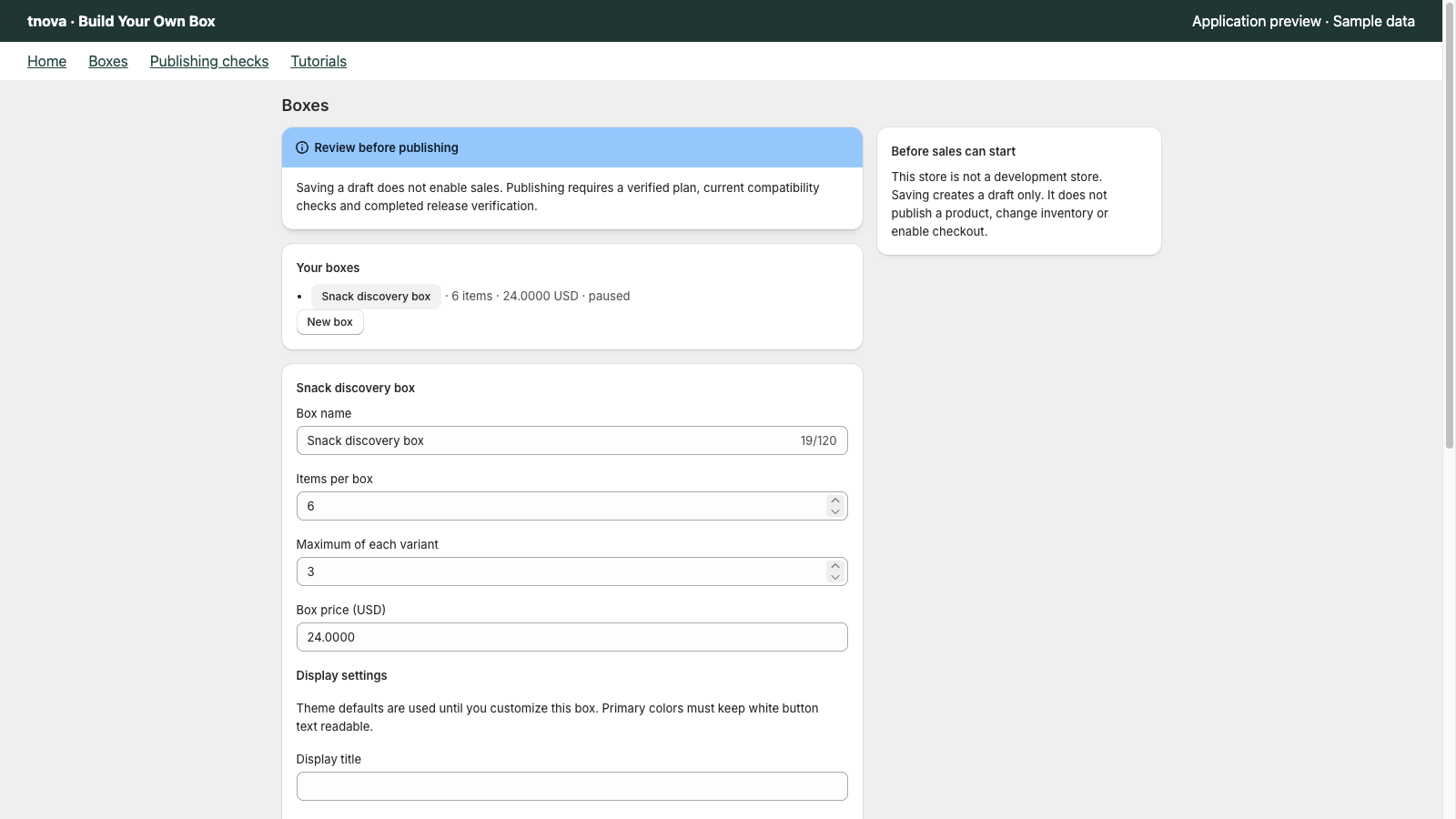
Quick answer: To change a published tnova gift box's price, item count, repeat limit or candidate variants, pause the box and confirm that it is paused. Save the revised draft, rerun the publishing checks for that draft, and publish a new version. Test a fresh purchase path and review old carts separately. Keep completed orders tied to the configuration version that was purchased.
A seasonal assortment change can look small: remove a discontinued flavor, add its replacement, keep the same six-item promise. The important question is what happens to the saved configuration, shoppers already selecting items and orders placed before the change. This guide gives you a controlled update routine for tnova's supported Online Store workflow.
Record what is changing before you pause
Open the existing box and make a short before-and-after record. Include its configuration identity, current version, parent product, price and currency, item count, per-variant maximum and candidate variants. Note the theme and cart-page path used for the current offer.
Here is an illustrative update, not a real merchant case:
| Setting | Before | Intended update |
|---|---|---|
| Items per box | 6 | 6 |
| Maximum of each variant | 2 | 2 |
| Fixed merchandise price | $36 | $38 |
| Candidate pool | Four eligible snack variants | Replace one discontinued variant with a new eligible variant |
| Customer promise | Choose six; at most two of each variant | Same selection rule; new price and available assortment |
Write the replacement's exact variant identity, not just “new flavor.” A similar product name or SKU does not establish that it is the same variant. Also identify where the old price or assortment appears in the Shopify product description, picker text, images and active campaign copy.
Pause and wait for the confirmed state
In tnova, pause the affected configuration. Confirm that the result is Paused before editing. The application distinguishes the requested state from the effective state; a pending pause or synchronization error is not confirmation that the update is ready.
tnova's configuration workflow requires a paused or draft state before saving changed rules. If another window has changed the box, reload the saved configuration and compare it with your record before retrying. Avoid copying an old form over a newer saved draft.
Schedule the update when you can monitor the storefront. Shoppers may already have an open product page, cart or checkout. Do not promise that their old selections will remain purchasable during a pause or after a version change.
Make the change in the configuration that owns it
Edit the box's candidate selection, price, item count or repeat limit in tnova, then save the draft. Saving does not enable sales.
For the example above, remove the discontinued candidate, select the replacement variant and set the box price to $38. Check the replacement's actual inventory and the shared online-fulfillment location. Use the inventory-readiness checklist for those conditions and the selection-rule guide if the count or repeat limit changes.
Shopify's product-editing documentation explains how to update ordinary product details, and notes that saved changes can take effect immediately on the storefront. Coordinate those visible edits with the paused box. Editing the parent price directly in Shopify is not a substitute for updating tnova's saved fixed-price configuration.
Update the wording that explains the offer as well. In this example, remove any $36 claim and any promise that the discontinued flavor remains selectable. Keep tnova's picker description brief; use the product-description template for the longer page copy. Text changes do not change selection rules.
Review the revised draft before publishing
Open Publishing checks and review the current configuration, theme, cart mode and compatibility evidence. tnova ties these checks to the saved draft and store context. A prior passing check from the old draft does not cover changed settings, and checks must be current within the application's 24-hour window.
Use the available unpublished-theme preview to inspect the revised offer. Check the replacement's name and options, the $38 price in this example, a valid six-item selection, the repeat boundary and the narrow-screen layout. Preview is evidence about the previewed experience; it does not by itself establish live checkout readiness.
Follow the theme-integration checks for the product and cart blocks. Keep the default market and currency, shared fulfillment location and verified cart-page path in scope. A box update does not establish support for a new market or cart drawer.
Publish only after the app's required checks pass. Publishing prepares a new saved version of the rules. Confirm the effective result instead of treating a successful draft save or a clicked publish button as proof that the box is selling.
Check a fresh cart and an older session separately
First, open the updated product page in a fresh session. Make a valid selection, inspect its component quantities and price in the supported cart page, then perform the authorized checkout checks needed for the revised setup. The new candidate should be selectable and the removed candidate should no longer be offered.
Separately, inspect a session that held the previous selection. tnova checks the submitted configuration version before adding a box; an old page can require a reload to review current rules, price and options. Do not use a browser refresh as evidence that an already-added box was upgraded automatically.
If an older cart box cannot proceed, inspect the cart before retrying. Use the supported remove-and-reconfigure flow and review the current offer before adding a replacement. If removal or replacement is uncertain, follow the cart troubleshooting guide. Do not repeatedly add a new box while the old cart contents are unresolved.
Preserve the meaning of orders placed before the update
An order bought under the $36 version belongs to that original version. Replacing a candidate or publishing a $38 version should not turn an earlier purchase into a new assortment or price.
tnova's order reconciliation compares the platform's component lines with the stored configuration version associated with the purchase. Use that version and Shopify's original order amounts when investigating an older order. Do not edit today's draft to make an older order appear to match it. The order-audit guide explains the separate payment, component, refund and inventory checks.
If the update fails, leave the box paused and resolve the specific issue. To return to the previous offer, use your before-and-after record to rebuild the intended settings, run current checks and publish again. This is another controlled publication, not a promise of a one-click rollback or restoration of every old cart.
*Prepared with AI assistance and checked against tnova's implementation and the official documentation linked here. The assortment and prices are illustrative.*
See a gift box in action
Try the sample picker with fictional products. It creates no cart or order.
Try the box builder