
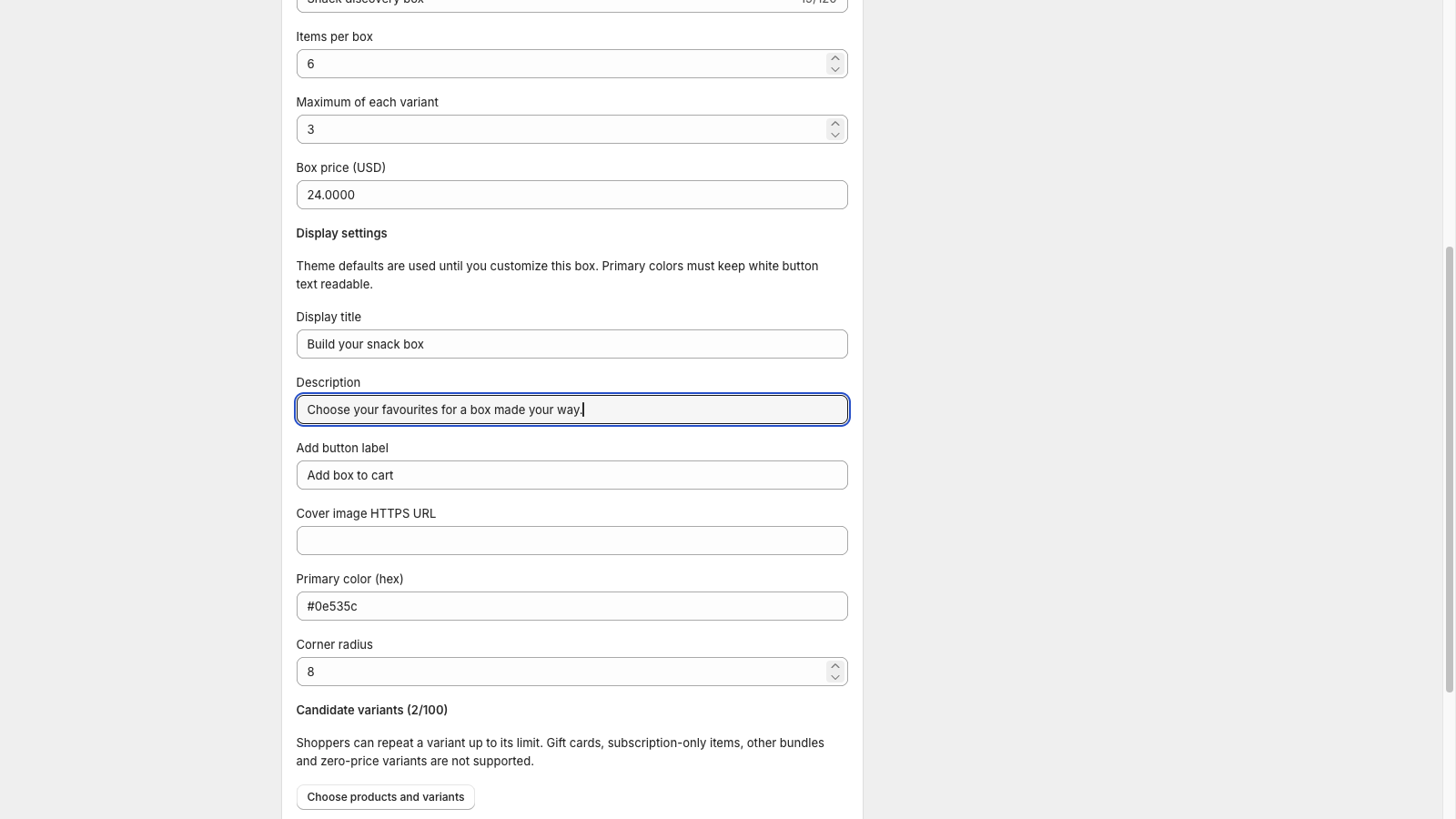
When a gift box cannot be completed or added, check the page setup, selection rules, current availability and cart path in that order. Preserve the shopper’s choices and record the visible error before retrying.
This guide covers tnova’s intended fixed-count workflow. The screenshots use sample data, and the public demo creates no real cart or order.
Quick answer: Start with the first failing step. If the picker is absent, check the product template and effective selling state. If a choice is disabled, compare the total, repeat limit and live stock. If adding or editing fails, inspect the current cart before another write. A retry is safe only after you know whether the first action took effect.
The picker is missing
Check that you opened the intended product page and theme. Verify the required theme app block is present in the relevant product template and the supported setup steps are complete.
Then review the configuration’s effective state and readiness result in tnova. A saved draft or a desired published state does not necessarily mean selling is enabled. Resolve the specific reported requirement rather than adding the block repeatedly. If readiness is unknown, wait for a fresh check; do not interpret an unanswered check as approval.
An item cannot be selected
Read the message before changing the candidate pool. The box may have reached its total, the variant may have reached its repeat limit, or availability may have changed.
Compare the selected quantities with the configured rules. Use the item-count examples to distinguish the overall total from a per-variant limit. If inventory cannot be confirmed, investigate that result rather than treating it as available stock.
For example, a six-item box with a two-per-variant cap cannot be filled from only two candidate variants: the most the shopper can select is four. Add an eligible third variant or change the box rules deliberately, then recheck readiness. A zero-stock variant is a different problem; changing the repeat limit will not create inventory.
The completed box cannot be added
First confirm the picker shows the exact required count. Review any price, inventory or eligibility error. Check whether the issue occurs on the supported full cart path, a drawer cart or another customized interaction.
After a network interruption, verify whether the cart already contains the box before retrying. Repeated clicks should not be used as a substitute for inspecting the actual cart result.
Where the storefront shows Check previous add, use it after the connection returns; View cart is another way to inspect the current cart. A message saying there is no *unconfirmed* add does not by itself prove an earlier request never reached Shopify. Look for the actual box and component quantities before submitting another add.
Editing a cart box is interrupted
The supported editing approach removes the existing box before creating the replacement. Observe whether removal succeeded and whether the new add succeeded. Those are separate steps.
If the old box remains, do not add another as a workaround. If removal succeeded but the replacement failed, use the provided recovery state and inspect the current cart before continuing. Cancellation and restoring the prior selection also need verification.
If the interface says an edit could not be verified, return to the cart before adding a replacement. The replacement should reflect the current price and selection; it is not inserted automatically after removal. Record whether the original remained, was removed, or was replaced, because those outcomes require different recovery steps.
Avoid changing several unrelated configurations while diagnosing one cart issue; that makes it harder to identify which version and rule produced the result.
Prepare a clear support report
- The affected product and configuration version.
- The theme and cart interaction used.
- The approximate time and exact visible message.
- The selected variants and quantities, using test data when possible.
- What happened before and after one controlled retry.
- Whether the issue reproduces on the supported purchase path.
- Whether Check previous add or View cart found the item after a network interruption.
Do not send shared administrator passwords or unnecessary customer data. Use the application’s support workflow for access and attachments.
Recheck after a fix
Repeat the original failed step, a valid complete selection and the supported cart edit flow. Review the launch-readiness checklist before resuming affected sales.
The sample picker is useful for understanding the selection interaction. It cannot reproduce a store’s inventory, checkout or theme conditions.
For underlying component requirements, use the inventory and launch-readiness checklist. Shopify's inventory tracking guide explains the platform setting; the tnova checklist records the narrower conditions this box workflow checks.
See a gift box in action
Try the sample picker with fictional products. It creates no cart or order.
Try the box builder