
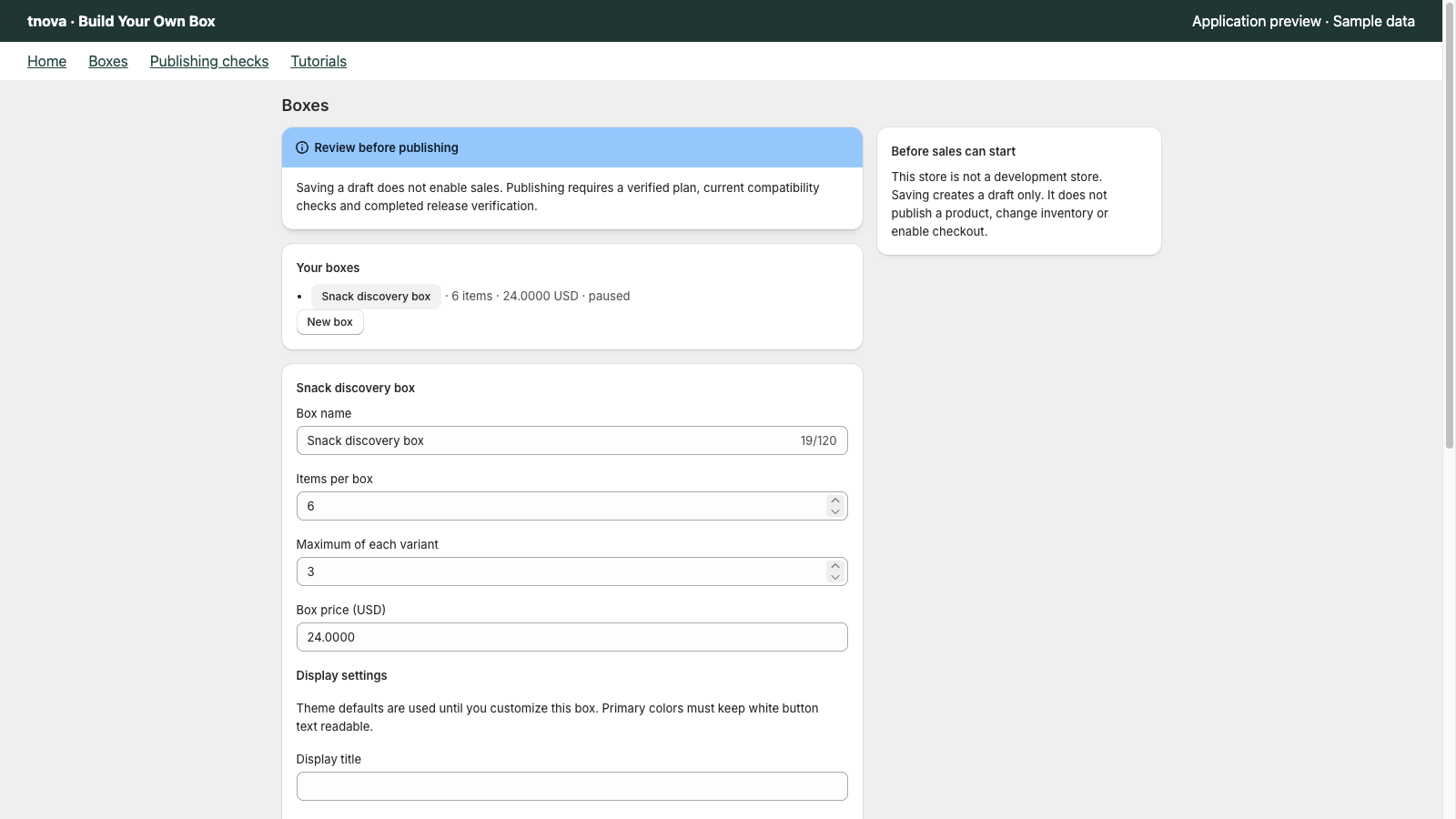
A completed test checkout is useful evidence, but it is not the whole audit for a shopper-selected box. Review the original selection, the fixed-price box version, the payment result and any later refund or inventory movement as separate facts.
Quick answer: Make one authorized test order through the same supported cart path you plan to expose. Record the order ID and tnova configuration version, then compare the actual component variants and quantities with the original selection. In tnova's Data and orders view, reconcile the order and review payment state and integrity state separately. If you refund or cancel it, verify the refund and restocking result in Shopify rather than assuming one caused the other.
This guide describes a careful validation routine for tnova's current workflow. It is not accounting, tax, legal, fulfillment or payment-provider advice.
Use an authorized test method
Choose a test method appropriate for the store before starting. Shopify says that test orders are a way to check checkout, order processing, inventory, shipping, notifications and taxes, and it documents simulated payment options such as the Test payment gateway and Shopify Payments test mode. Read Shopify's current test-order guidance first; its availability and cautions depend on the store's payment setup.
Do not enable a test gateway on a store that is serving real customers without understanding the effect. Shopify notes that customers cannot place live orders while payment providers are in test mode. If you are working in a development or client-transfer store, its development-store test-order rules add constraints, including restrictions on real transactions.
For the tnova test, use the supported cart page and the same market/currency assumptions you recorded during theme testing. Do not use a successful checkout from an unrelated theme, box version or cart route as evidence for the path you plan to launch.
Freeze the facts before placing the order
Before checkout, note these items in a small test record:
- Parent product and tnova configuration version.
- Fixed box price and currency shown to the shopper.
- Selected component variant names, IDs if available, and quantities.
- Required item count and per-variant limit.
- Theme version and cart path.
- Starting inventory at the supported fulfillment location.
This record gives you something concrete to compare after the order exists. It also prevents a later configuration edit from being mistaken for the rule set the customer accepted. If candidate eligibility or stock is uncertain, stop before checkout and use the launch-readiness checklist to resolve that condition.
Audit the completed order in two places
First open the order in Shopify and verify that it is the expected test order and that its payment result is the result you intended to simulate. Then, in tnova, open Data and orders, enter the numeric order ID and request reconciliation.
Review the saved configuration version, parent group, component variants, quantities, allocated price, discounts and taxes. For one box, the component quantities should match the selection. For two boxes, each selected quantity should be multiplied by two. Do not accept the parent product title alone as proof that the component lines are correct.
tnova reports payment state and integrity state separately. A paid result answers a payment question; an integrity result compares the observed order with the stored box information. Neither label, by itself, proves that every fulfillment, tax, refund or reporting question has been resolved. If a field is unknown or an integrity result is not matched, preserve the order details and investigate rather than editing the current draft to make the history appear consistent.
Treat a refund and restock as separate checks
If the test order needs cleanup, cancel or refund it through Shopify using the option that fits the test. Shopify's refund documentation explains that the refund workflow includes separate choices, including restocking inventory in applicable cases. The payment refund, refunded component amount and inventory movement should therefore be checked independently.
After Shopify finishes processing, reopen the order and tnova's reconciliation view. Confirm:
- The refunded amount and affected component quantities match the action you took.
- Any restocking choice and resulting inventory quantity are the result you intended, at the relevant location.
- The original purchase record is still interpreted against its original configuration version, not today's edited rules.
- Test-order results are not being used as normal operating performance or customer results.
Do not claim that inventory was restored because a refund was issued. Check the real inventory result after Shopify processes the transaction. Likewise, do not claim a refund occurred merely because an order was cancelled; inspect the recorded payment and refund details.
Handle an unexpected result without compounding it
If the order's components, amount or status differ from the test record, pause the affected box and capture the order ID, configuration version, timestamps, visible message and observed lines. Avoid placing another identical test just to see whether the first one changes: a second order creates a new fact, not a repair of the first.
For a cart result that was uncertain before checkout, read troubleshooting a gift box picker and cart. For a mismatch after an order exists, investigate the specific payment, component, version or inventory fact before resuming the same configuration. Keep customer data out of support material unless it is necessary and authorized.
Use the audit to make a launch decision
One carefully documented test does not certify every future order, theme update, market, discount or fulfillment arrangement. It does establish a baseline for the exact combination you tested. Repeat the relevant checks after changing the box price, candidate pool, count, repeat limit, theme/cart path or payment setup.
The tnova product is designed around a fixed price, a fixed item count, per-variant limits, the default market and currency, one shared fulfillment location, and a supported cart-page flow. Keep the scope explicit when reporting the outcome. That is more useful to a merchant than a broad claim that the entire store is ready.
See a gift box in action
Try the sample picker with fictional products. It creates no cart or order.
Try the box builder