
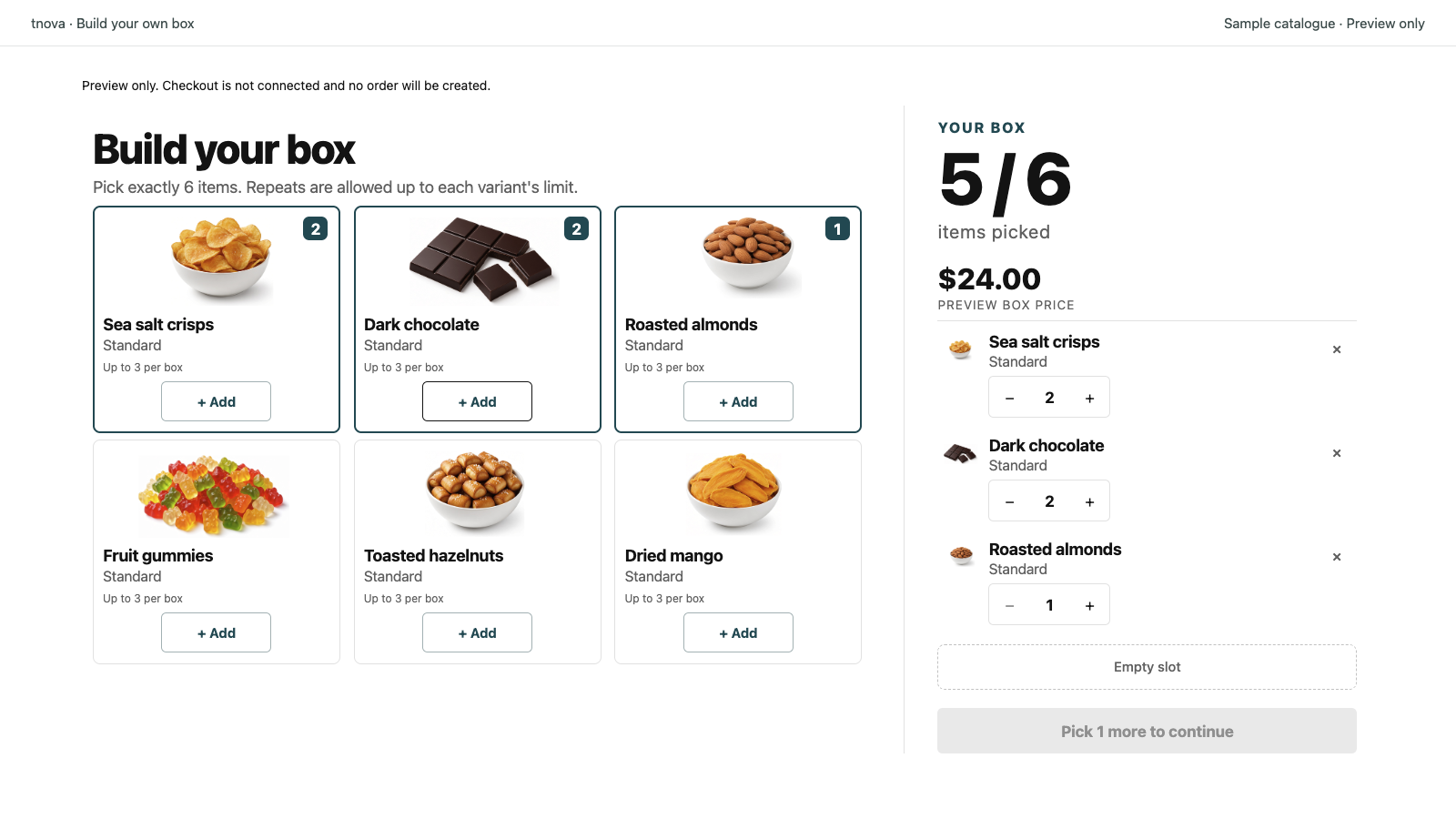
When a gift-box configuration is ready, the next question is whether the storefront actually presents and carries that selection correctly. Test the precise theme, product template and cart path in an unpublished theme before you publish it.
Quick answer: In tnova, add the Box picker block to the intended parent product template and Box contents to the cart page of an unpublished supported theme. Then test one complete selection, the two selection boundaries, the actual cart view, and the remove-and-reconfigure flow. Record the theme version and cart mode. A successful product-page preview is not enough, and a cart drawer or quick-buy path has to be verified separately.
This is a test plan for tnova's current fixed-price, mix-and-match workflow. It does not certify every Shopify theme, cart customization, payment setup or checkout extension.
Start with a testable theme and product
Duplicate the theme you intend to use, or choose another unpublished theme. In Shopify admin, open the parent product's assigned template rather than a similar-looking product page. Record the theme name and version, the product handle or URL, the market/currency you will test, and whether customers normally use the cart page, a cart drawer, quick buy, or another route.
Shopify's theme-app-extension model lets merchants place app blocks through the theme editor. But an app block requires a compatible template and section; Shopify's own theme-support checks call out JSON templates, the main section, and an @app block in that section's schema. Do not treat the ability to open the editor as proof that a particular placement renders correctly on the storefront.
For tnova, use the actual box parent product and a configuration that has passed its current readiness checks. The selection promise on the product page should agree with the configuration: fixed box price, required item count, candidate products and repeat limit. See how to plan a fixed-price gift box if those rules still need a review.
Place both tnova blocks
In the product template, add Box picker in the product-information area and save the unpublished theme. Open the product preview and check the picker against the configuration you selected. It should show the intended title, price, candidate names, selection progress and completion control.
In the cart-page template, add Box contents and save. This block is meant to show Shopify's actual bundle components after a box has been added. The current tnova baseline is the Dawn 16 cart page. Cart drawers are not currently supported, so do not describe a drawer as working because the product picker itself appears there.
That distinction matters: Shopify describes app blocks as flexible, reorderable theme components, but placement flexibility does not turn every cart interaction into a tested tnova purchase path. Shopify's theme-app-extension documentation is useful platform background; the support decision for a tnova store still depends on the storefront behavior you observe.
Run five focused checks
Use fictional or authorized test products. Keep a short record of the exact configuration version and observed result for each check.
- Incomplete selection. Select fewer than the required number of units. Confirm that the interface explains what is missing and does not present an incomplete box as ready to add.
- Repeat-limit boundary. Attempt to select one candidate beyond its configured per-variant maximum. This is a different rule from the total item count; both need an understandable result.
- Complete selection. Select exactly the required units within the limit and add one box once. Check the cart rather than relying only on a success message.
- Cart contents. On the supported cart page, inspect the component variants and quantities. Compare them with the selection you made, then add a second whole box only if you are deliberately testing multiplication of quantities.
- Edit and recovery. Use the supported remove-and-reconfigure path. Confirm whether removal completed before adding a replacement. If the network result is uncertain, inspect the actual cart before trying again.
The item-count and repeat-limit guide has a small worked example to make the first two checks concrete. The troubleshooting guide explains why a second add should never be the first response to an interrupted request.
Check the views customers can actually reach
Preview the product page on a narrow viewport as well as desktop. Verify that the selection controls, remaining-count message, error text and completion action remain usable. Then follow the same entry point a customer will use: normal product page to cart page, not a hand-built URL that skips the store's usual cart behavior.
If the live theme exposes a cart drawer, quick buy, accelerated checkout, a page builder, or another app that touches the cart, document it as unverified until it has a dedicated result. Do not hide an unverified path and assume the full buying experience is protected. Publishing a tnova configuration and publishing a Shopify theme are separate actions.
Decide whether the theme is ready to publish
Publish the theme only when the tested product, configuration version and cart path match the experience you plan to offer, and the required store-specific checkout checks are complete. A failure should produce a specific next step:
- Wrong picker or missing block: return to the correct product template and verify theme support.
- Wrong candidates, price or rules: correct the tnova configuration and rerun readiness; do not compensate with theme text.
- Cart-page mismatch: pause the launch for that theme/cart path and investigate before inviting customers.
- Uncertain add or edit result: inspect the cart and preserve the selection details before another write.
Keep the result with the tested theme version. A theme update, a new cart app, a changed configuration, or a new market can change the path you validated. The inventory and launch-readiness checklist is the companion check for candidates and fulfillment before this theme test.
Explore the interaction safely
The tnova sample picker uses fictional products and creates no cart or order. It is useful for understanding the selection experience, but it cannot validate your theme, Shopify cart, inventory or checkout.
See a gift box in action
Try the sample picker with fictional products. It creates no cart or order.
Try the box builder