
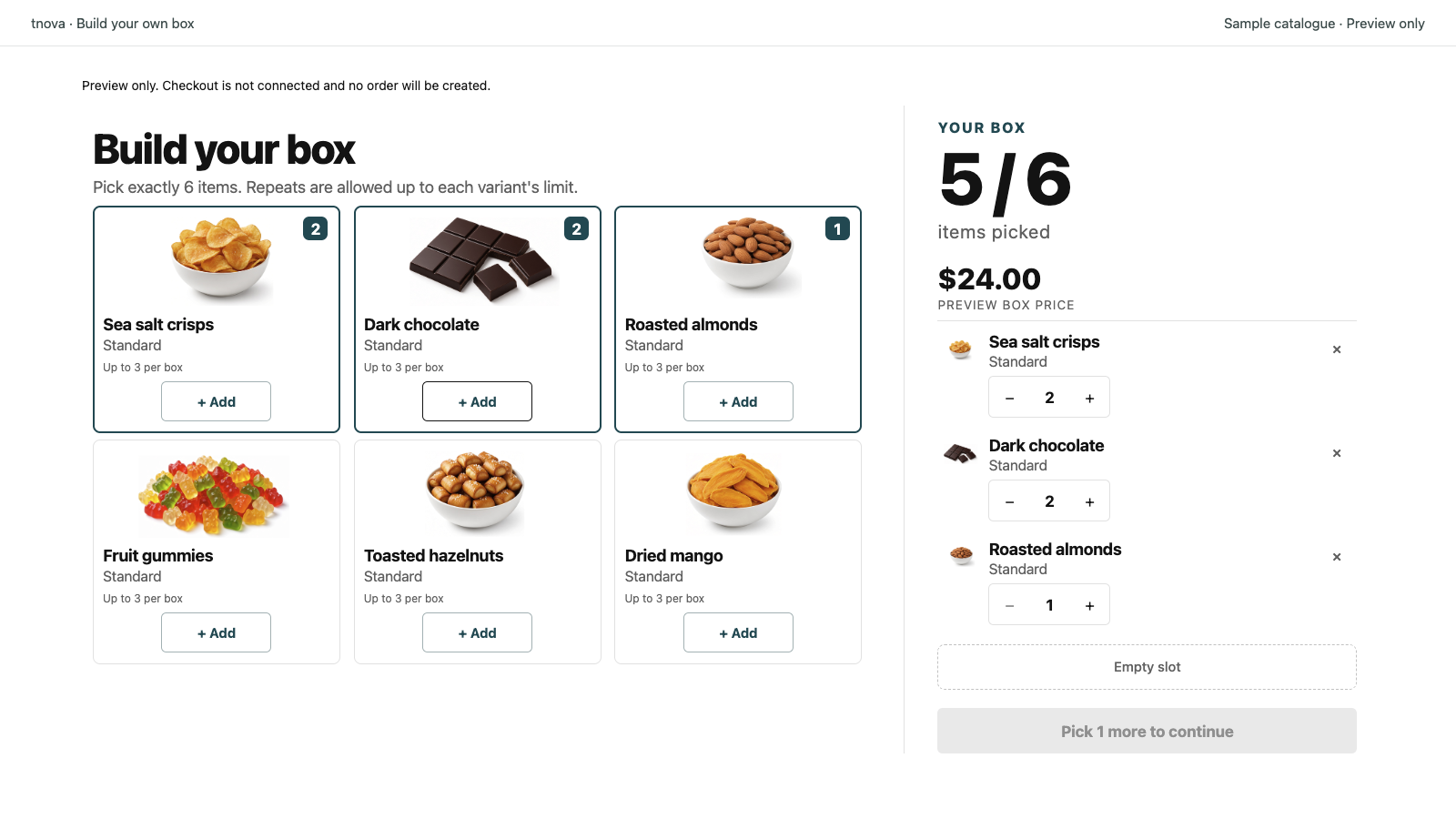
Quick answer: Give each selectable gift-box item an identifiable product name, its actual size or other variant options, and an image that matches that variant. In tnova, the choice represents a specific Shopify variant; the picker shows the product title and variant label, then carries that identity into the selection panel. Check these together before approving the assortment, especially when one product contributes several variants.
This guide helps you prepare the individual choices, rather than write the overall box description. tnova is preparing for public installation; its store workflow currently has a Dawn 16 cart-page baseline. Use an authorized preview or test environment for your own catalog. The cover shows a sample picker, not a merchant's live assortment.
Make one row for every selectable variant
Shopify defines a variant as a specific combination of product option values, such as size and color. That distinction matters when a gift box draws several choices from the same product. A product called “Pocket Notebook” might supply both a blue notebook and a green notebook; those are separate candidate variants.
Start a simple assortment sheet with the product title, option values, variant ID, packing reference and intended image. The packing reference can be your SKU or another identifier your team already uses. It is an internal cross-check, not a promise that tnova displays SKUs on every card.
Here is a fictional stationery assortment:
| Product title | Variant options | Packing reference | Image to check |
|---|---|---|---|
| Pocket Notebook | A6 / Blue | NOTE-A6-BL | Blue A6 notebook |
| Pocket Notebook | A6 / Green | NOTE-A6-GR | Green A6 notebook |
| Pocket Notebook | A5 / Blue | NOTE-A5-BL | Blue A5 notebook with an honest size reference |
| Pencil Set | HB / 3 pencils | PENCIL-HB-3 | The actual three-pencil pack |
| Page Flags | Pastel / 50 tabs | FLAGS-PASTEL-50 | The actual pastel tab pack |
Keep the real variant IDs beside these rows in your working sheet. Five rows here mean five candidate variants, even though there are only three product titles. tnova supports up to 100 candidates per box; count selected variants rather than product names. The maximum is a technical limit, not a reason to include every size your store sells.
Decide what one item means before adding sizes and packs
A tnova box contains 2–12 item units. One unit of a selected variant counts as one item toward that total. If the underlying Shopify variant is a three-pencil pack, selecting one pack is one box item; it does not fill three slots.
For a fictional six-item offer, this selection has six units:
- Blue A6 notebook × 2.
- Green A6 notebook × 1.
- Three-pencil pack × 2.
- Pastel page-flag pack × 1.
The two pencil packs contain six pencils, but contribute two items to the box counter. Say “Choose six stationery items; each pack counts as one item” if that describes your actual offer. Make the pack size visible in the candidate's product or option text so the shopper can understand what arrives.
Compare larger and smaller variants before including both at the same fixed box price. They can differ in cost, physical fit and shipping weight. Use the cost-ceiling worksheet for the permitted selection and the shipping checklist for delivery effects. Clear labels help identify the choice; they do not resolve those commercial differences.
Fix the source names instead of hiding differences in the box heading
tnova's component card uses the Shopify product title and variant label. For a product with only its default variant, the picker uses a standard variant label. Changing the box's display heading does not rename its candidate products or create separate aliases for them.
If two notebook cards both read “Pocket Notebook — Blue,” the size is missing from the information the shopper needs. Review the actual product options in Shopify so the relevant A6/A5 distinction is included. Use the real catalog structure rather than inventing a size in the box description that is absent from the chosen variant.
Changes to the source product can also affect its standalone product page and other uses in the store. Review those before saving a rename. Keep your assortment sheet anchored to variant IDs so a wording change is not confused with selecting a different item. For a product that genuinely has no options, put a necessary pack size or other distinguishing fact in an accurate product title or nearby product information.
The gift-box description template is the place to explain the overall purchase. Candidate labels need to answer the smaller question: “Which exact item am I choosing?”
Check the image fallback on similar variants
tnova uses the variant's image when available, with the product's featured image as a fallback. A shared product photo can therefore make blue and green variants look identical if neither has a specific image. Assign the appropriate image to each variant and reopen the preview to inspect the actual result.
Shopify's variant-image instructions describe how to open the product, select the image beside the variant, choose or upload an image, and save. Each variant has one assigned image; a product gallery does not mean every image becomes part of the tnova card.
For the notebook example, check the cover color and size reference. For a pencil pack, make clear whether the photo depicts the whole pack or just one pencil. Keep meaningful differences in text as well as the image; the shopper should not have to infer a size from a thumbnail or distinguish two choices only by color.
Use image alt text that describes what is actually shown. “Blue A6 pocket notebook” is useful for that image. A string of unrelated gift keywords adds no identification value. The public sample builder illustrates the card and selected-items layout with fictional products; it does not verify your image assignments.
Check repeat wording when one product has several variants
The per-variant limit applies to each candidate variant. In this example, a maximum of two lets a shopper choose two blue A6 notebooks and two green A6 notebooks. That is four notebook units across two variants, within the stated per-variant limit.
“Maximum two notebooks” would describe a different restriction. If your intended offer needs a product-wide cap across all notebook variants, a per-variant limit alone does not express it. Reconsider the candidate pool or verify a separately supported rule before making that promise. The count-and-repeat guide explains the underlying rule.
Finish with a short identity test in the supported preview: select both similar variants, increase one quantity, and compare the cards with the selected-items panel and your sheet. On a narrow screen, check that the meaningful option text remains readable. For an authorized cart test, verify the same variants and quantities on the supported cart page; follow the theme-integration checklist for the wider purchase path.
Approve the assortment only after its identities are clear and its separate eligibility checks pass. Use the inventory-readiness checklist for physical-product, stock and fulfillment requirements. If the assortment itself changes on a published box, use the pause-and-update procedure. A cleaner photograph does not certify inventory, checkout or another cart mode.
About this guide: Prepared with AI assistance and checked against tnova's component-card implementation and the official Shopify sources linked here on October 14, 2026. The stationery products, identifiers and selections are fictional examples.
See a gift box in action
Try the sample picker with fictional products. It creates no cart or order.
Try the box builder