
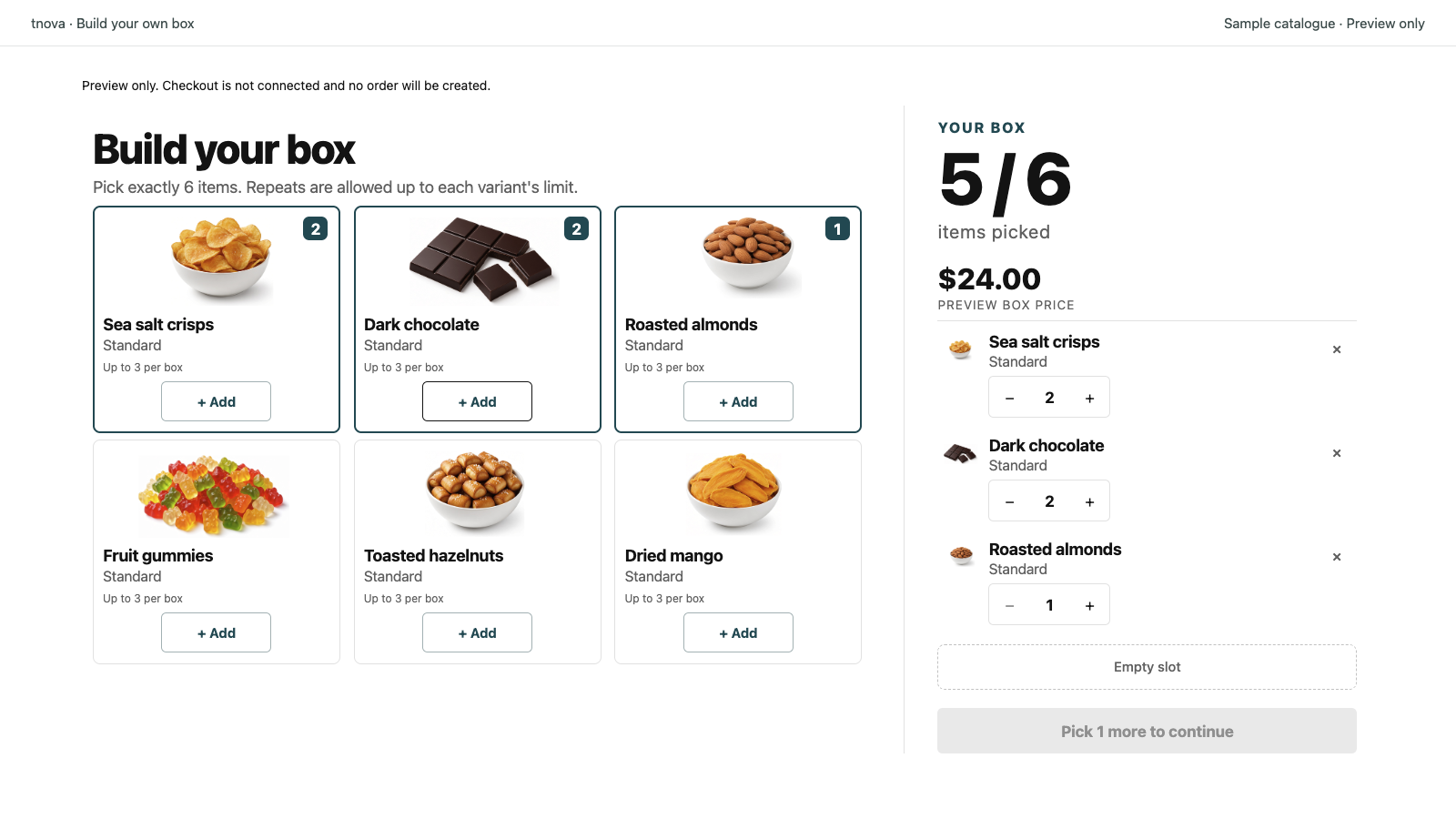
Quick answer: Test a gift-box picker by completing and revising one legal selection without a mouse, checking the same task with a screen reader, and repeating it at a narrow screen width and enlarged text. Record whether the shopper can identify each variant, follow the item count and recover from a disabled action. A good-looking empty picker is not enough evidence for those tasks.
This guide is a practical first review, not an accessibility certification. W3C's Easy Checks explains that preliminary checks can find barriers but cannot establish comprehensive accessibility. Test with people who use assistive technology when assessing the full experience.
For tnova, use an authorized unpublished theme and the actual saved box configuration. Public installation is not available yet; Dawn 16.0.0 with cart type Page is the verified checkout baseline. Other themes and cart modes require their own compatibility evidence. The theme integration guide covers block placement and the purchase path; this guide focuses on operating the selection interface.
Prepare a selection that exposes difficult states
Use real candidate variants and sufficient test stock. Record the theme version, cart mode, box version, browser, device and any assistive technology used. Keep the test away from live customers.
For a fictional six-item box with a maximum of two per variant, select two A, two B and two C. All six units are required even though there are only three distinct variants. Then remove B, restore it and finish again. This reaches a repeat limit, the full-box state and an incomplete state without changing the saved rules.
Include two variants of the same product if your assortment has them. Those are particularly useful for finding ambiguous control names. If choices are revealed through a Show more control in your actual picker, include it in the route. Do not assume every configuration has the same filters or paging controls.
The sample picker is useful for rehearsing selection tasks with fictional products. It creates no cart or order and does not validate your theme, real product records or checkout. The cover shows a separate sample configuration, not the test assortment above or a completed accessibility assessment.
Complete and revise the box using only the keyboard
Set the mouse aside. Use Tab and Shift+Tab to move through available controls, and Enter or Space to activate a focused button. If your browser or operating system normally skips buttons, enable its standard keyboard-navigation setting before recording a result.
Run this route, noting the actual outcome at each step:
| Step | What to inspect |
|---|---|
| Reach a candidate's Add control | Focus is visible and the associated product and variant are identifiable |
| Add A twice | Count increases twice; the repeat limit prevents another A while other permitted choices remain usable |
| Fill the box with B and C | Six units are visible; the completion action becomes available for the current test state |
| Reduce a selected quantity | Count falls; focus remains findable and another legal unit can be selected |
| Remove a selected variant entirely | The intended row disappears; the next keyboard action has an understandable destination |
| Restore a legal complete selection | The selected items, count and completion action agree |
Test navigation when a control becomes disabled, as well as while it is enabled. Do not expect disabled controls to behave like ordinary tab stops. The shopper still needs to find the selected-items controls and understand why another unit cannot be added. A focus indicator hidden behind a sticky header or selected-items panel is a useful defect to record.
tnova uses buttons for selection and provides focus styling. Theme CSS can affect the result, so check the actual rendered page. Do not remove outlines simply to make the picker match a brand style. Shopify's theme-accessibility guidance specifically calls for visible keyboard focus on interactive elements.
Listen to names, quantities and changes
Repeat the task with a screen reader and its normal navigation commands. Record the browser and screen-reader combination; a pass in one combination is evidence for that combination.
Listen to a candidate's Add button before activating it. tnova's candidate control includes the product and variant in its accessible name. Confirm that the real source names distinguish the intended choices. In the selected-items panel, check the names of increase, decrease and remove controls together with the row's product, variant and quantity. A spoken product name alone may be ambiguous when two selected rows are variants of that product; report what you actually hear.
After adding, reducing or removing an item, listen for a useful update and inspect the resulting selection. The picker has a status announcement area, but its presence in code does not establish that every browser and screen reader communicates every transition well. Note missing, duplicated or confusing announcements by action, rather than marking the entire page as “screen-reader compatible.”
Product images should add useful information without carrying the only identification of a size or flavor. The candidate image uses the source image's alternative text, with the product title as a fallback. Review the image that actually renders and the adjacent text; update meaningful source alt text where appropriate. Use the variant-identification guide to resolve unclear product data before repeating this test.
Check the selected panel at mobile width and enlarged text
Repeat selection, quantity changes and removal on a real phone or at a narrow browser width. Open and close the mobile selected-items panel where it appears. Verify that its count, price, chosen variants and controls remain readable and reachable, including near the bottom of the page.
Test at 200% page zoom, then check text-only enlargement where your browser supports it. W3C's Easy Checks describes text-only resizing, which can reveal different barriers from page zoom. Inspect long product names and variant labels, not only short sample names. Check whether essential text or controls are clipped and whether the panel hides the item you need to operate. A browser device preview helps find layout problems; it does not replace a real touch-device check.
Use a precise note such as: “At 200% zoom, the second selected variant's remove button is hidden by the store's sticky footer.” That gives the next reviewer a state and an obstruction to reproduce. “Mobile looks broken” does not.
Review contrast and instructions in the actual state
Check the configured accent against the real background and button text. Shopify recommends at least 4.5:1 contrast for body and button text, 3:1 for large headings, and 3:1 for non-text controls such as borders and icons. Use a contrast checker for the actual color pairs; a hex color that looks dark enough by eye is not a measurement.
tnova's display settings let the owner change the title, description, add-button label and primary color. Use the title and description to state the item count and repeat rule plainly. Keep the button label consistent with its action. Display copy does not change selection rules, and longer formatted instructions belong in the Shopify product-page content.
Check an incomplete box and a repeat-limit state as well as the completed box. The shopper should be able to understand selected and remaining quantities from text and numbers, without interpreting an accent color alone. Confirm the price and instructions remain legible alongside the disabled state.
Keep a short record and retest the affected task
Record each task as passed, failed or not tested, with the device/browser, assistive technology, exact selection and observed result. If something fails, distinguish source-data or display-copy changes from a theme/style problem or picker behavior requiring support.
After a correction, repeat the failed transition and the adjacent steps. Use the support-report guide for a reproducible handoff. Retain the tested configuration and theme version; later theme, layout or app changes can require another review.
About this guide: Prepared with AI assistance and checked against tnova's picker controls, status announcements, focus handling and display settings, plus the official Shopify and W3C sources linked here on October 15, 2026. The test assortment is fictional. No completed merchant accessibility audit, certification or customer outcome is claimed.
See a gift box in action
Try the sample picker with fictional products. It creates no cart or order.
Try the box builder